Step 1: Open the DXF file
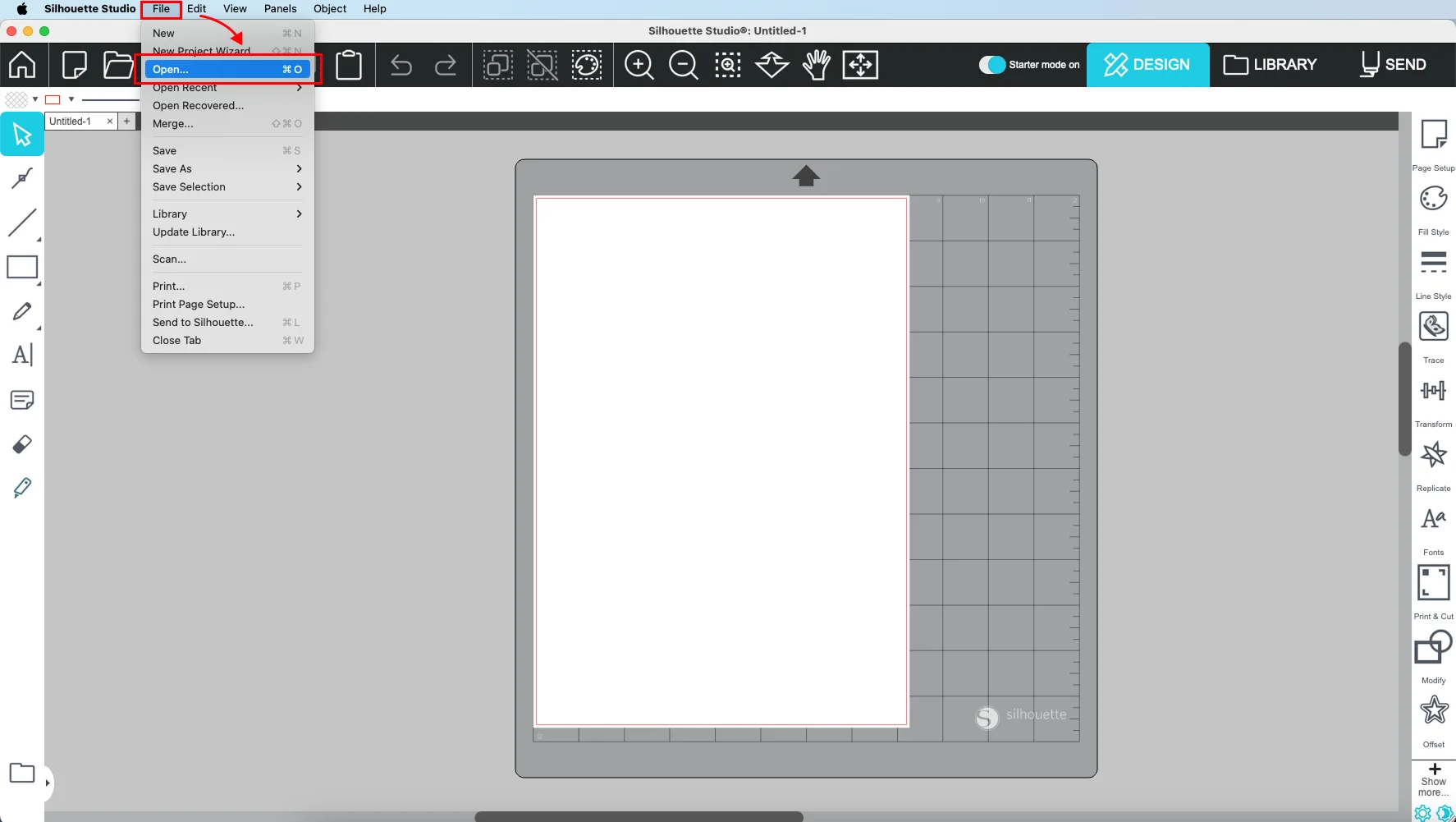
- Launch Silhouette Studio on your computer.
- Click File > Open from the top menu.
- Find and select the .dxf file you downloaded from MakeItPaper.
- Click Open to load it onto your canvas.
Step 2: Set line actions by color
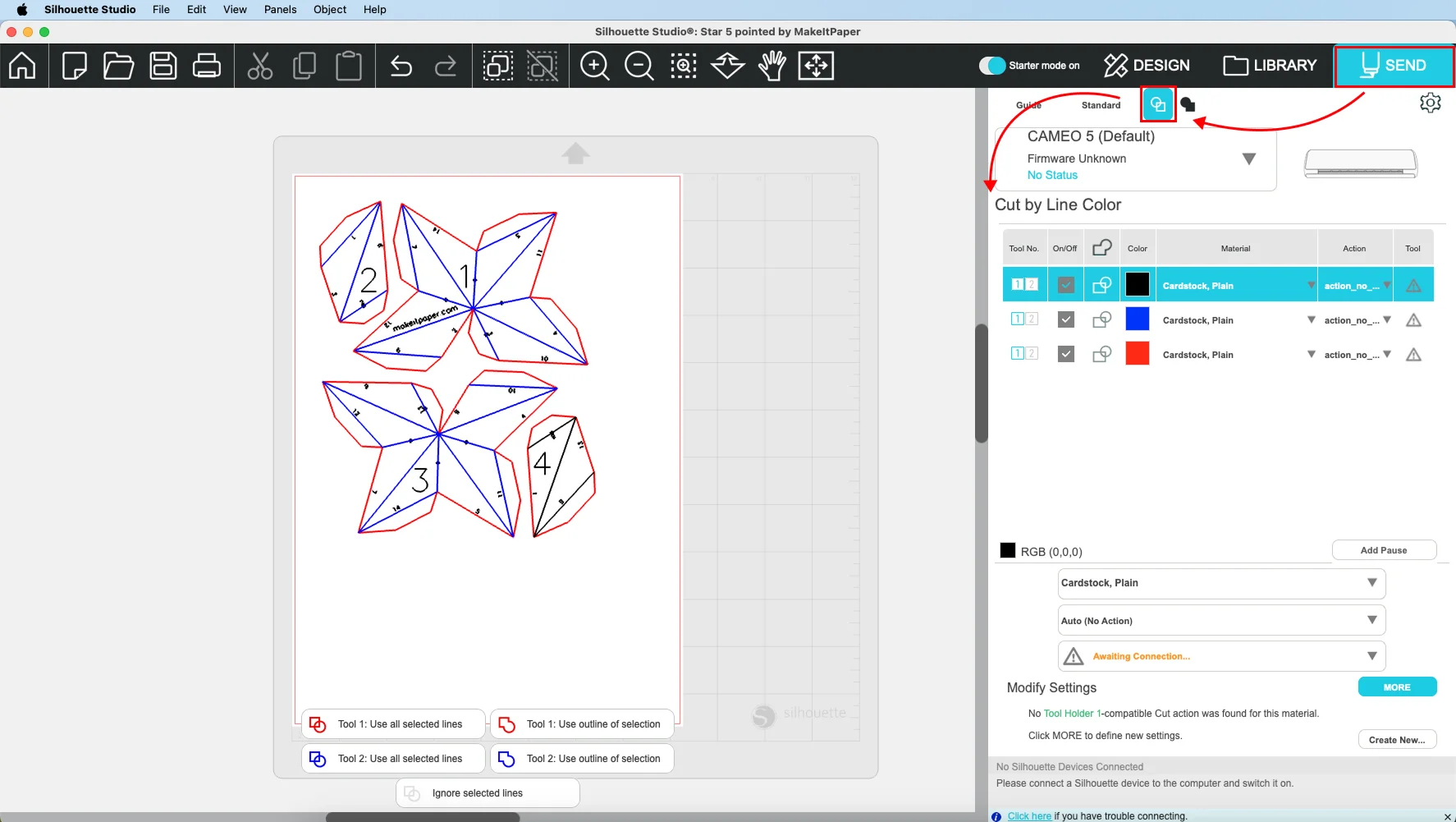
- Click the Send tab at the top right.
- Under “Cut by Line Color”, you’ll see the design’s line colors listed.
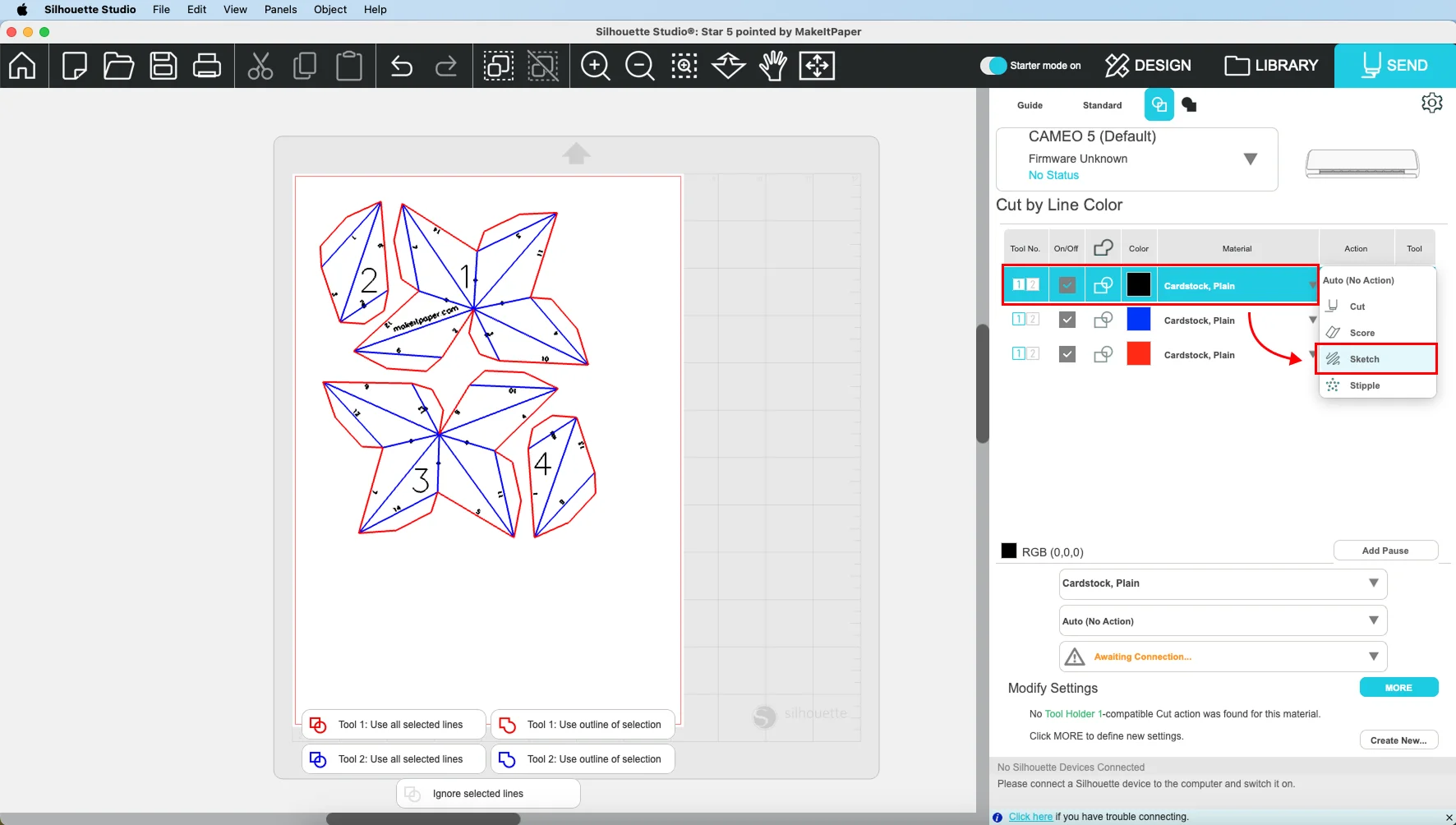
- Set the Black line to Sketch (for drawing lines)
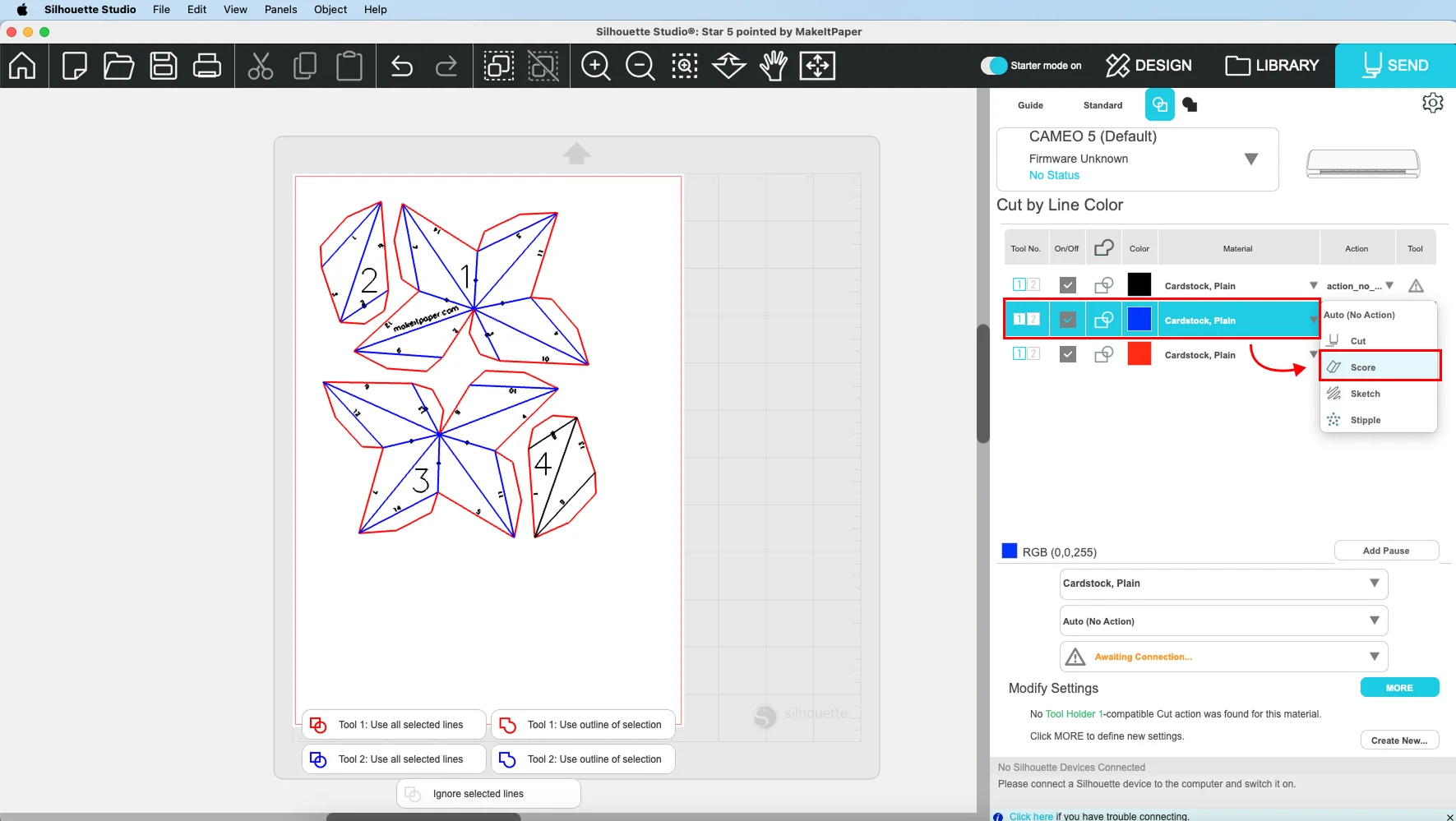
- Set the Blue line to Score. Use a low blade depth or low force setting so it makes a light cut, making the paper easy to fold but doesn’t cut all the way through.
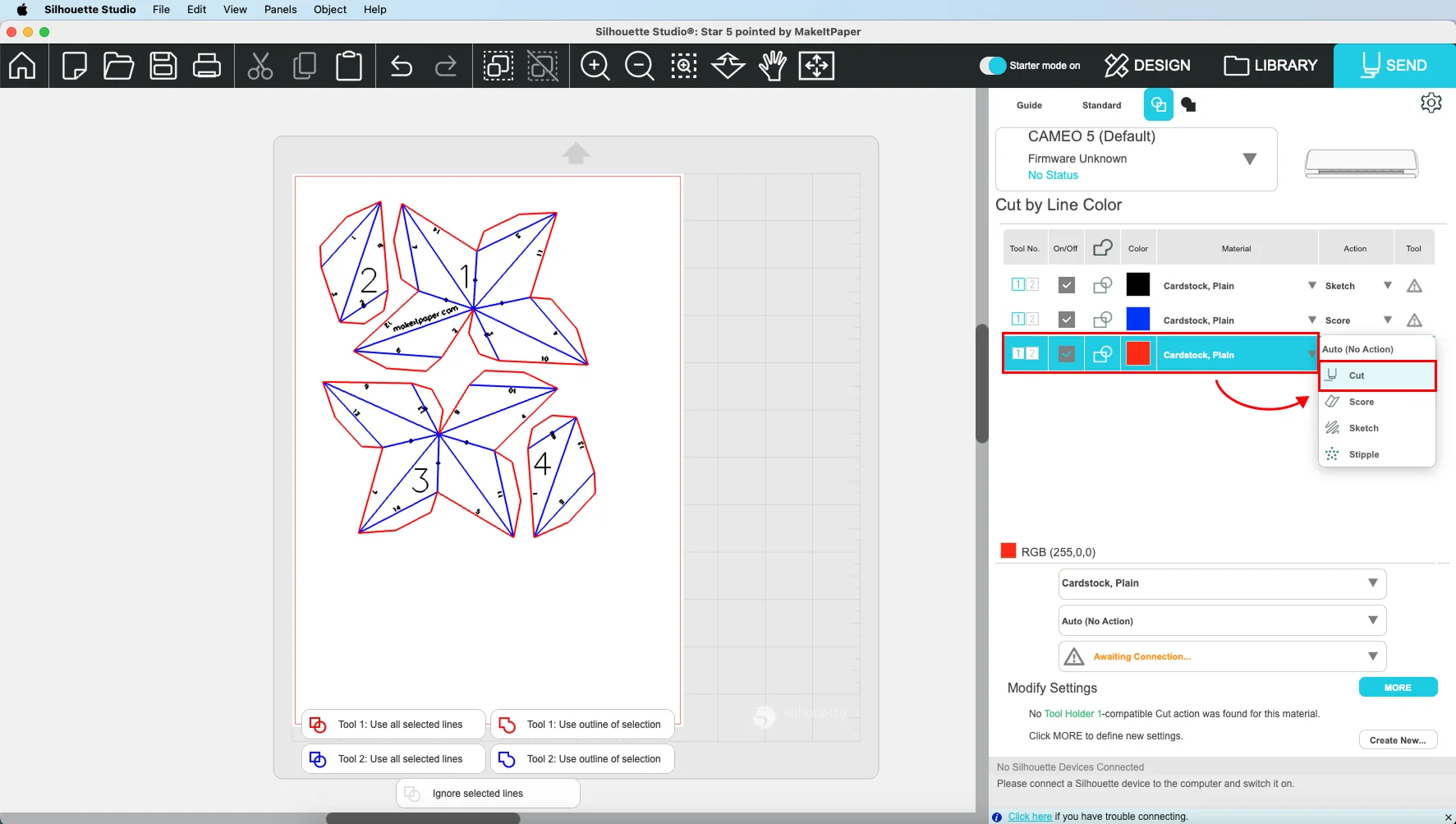
- Set the Red line to Cut (to fully cut out the design).
Step 3: Load and cut
- Adjust the blade depth, speed, and force based on your material and blade condition.
- Under the Send tab, choose your material as Cardstock.
- Load your mat into the Silhouette machine with your paper or cardstock.
- Double-check your cut settings.
- Click the Send button to start cutting!
That’s it! Now you’re ready to cut your MakeItPaper designs using Silhouette Studio. Happy crafting!