Step 1: Start a new project
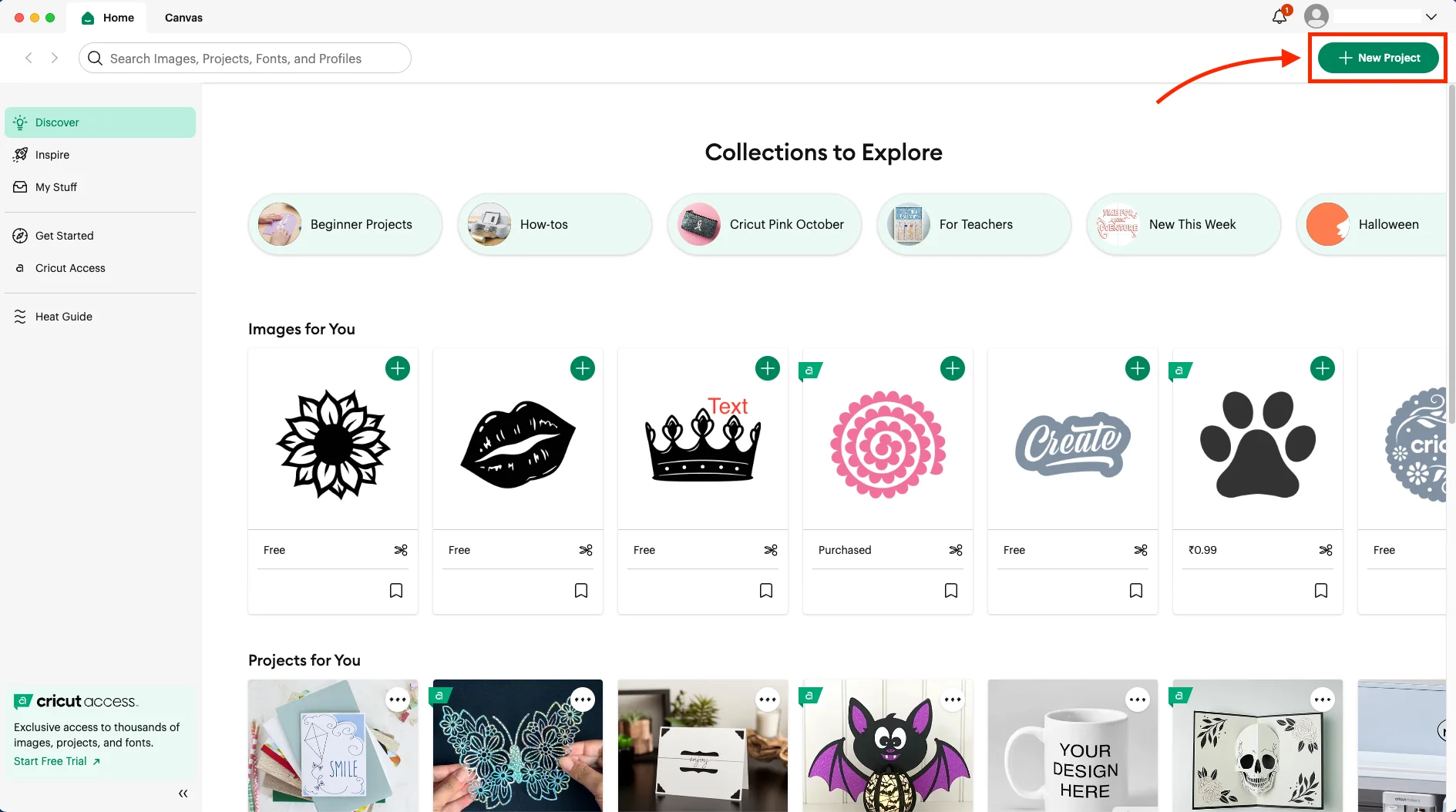
- Open Cricut Design Space on your computer or phone.
- Log in to your account.
- Click on the “New Project” button to open a blank canvas.
Step 2: Upload the SVG file
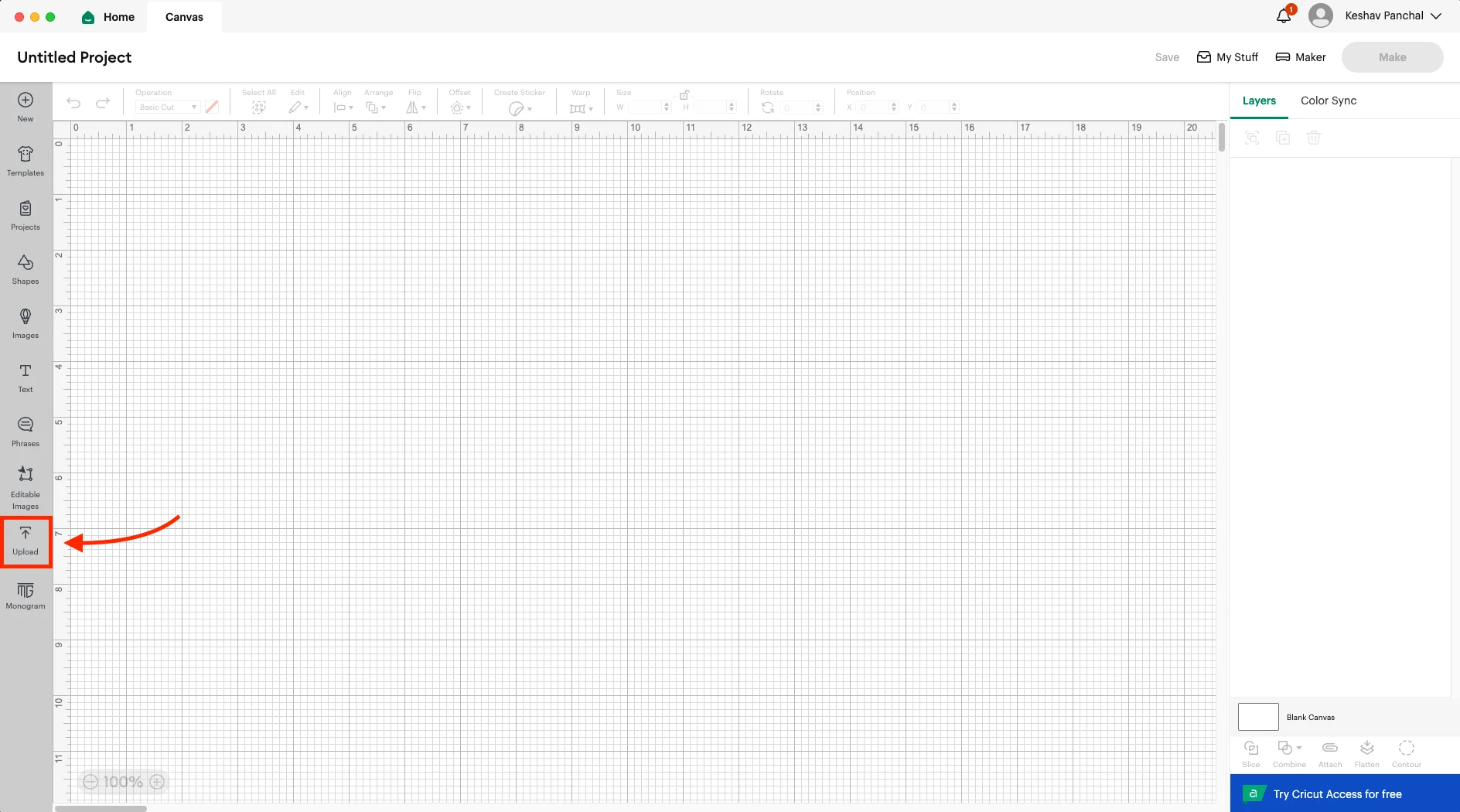
- On the left menu, click “Upload”.
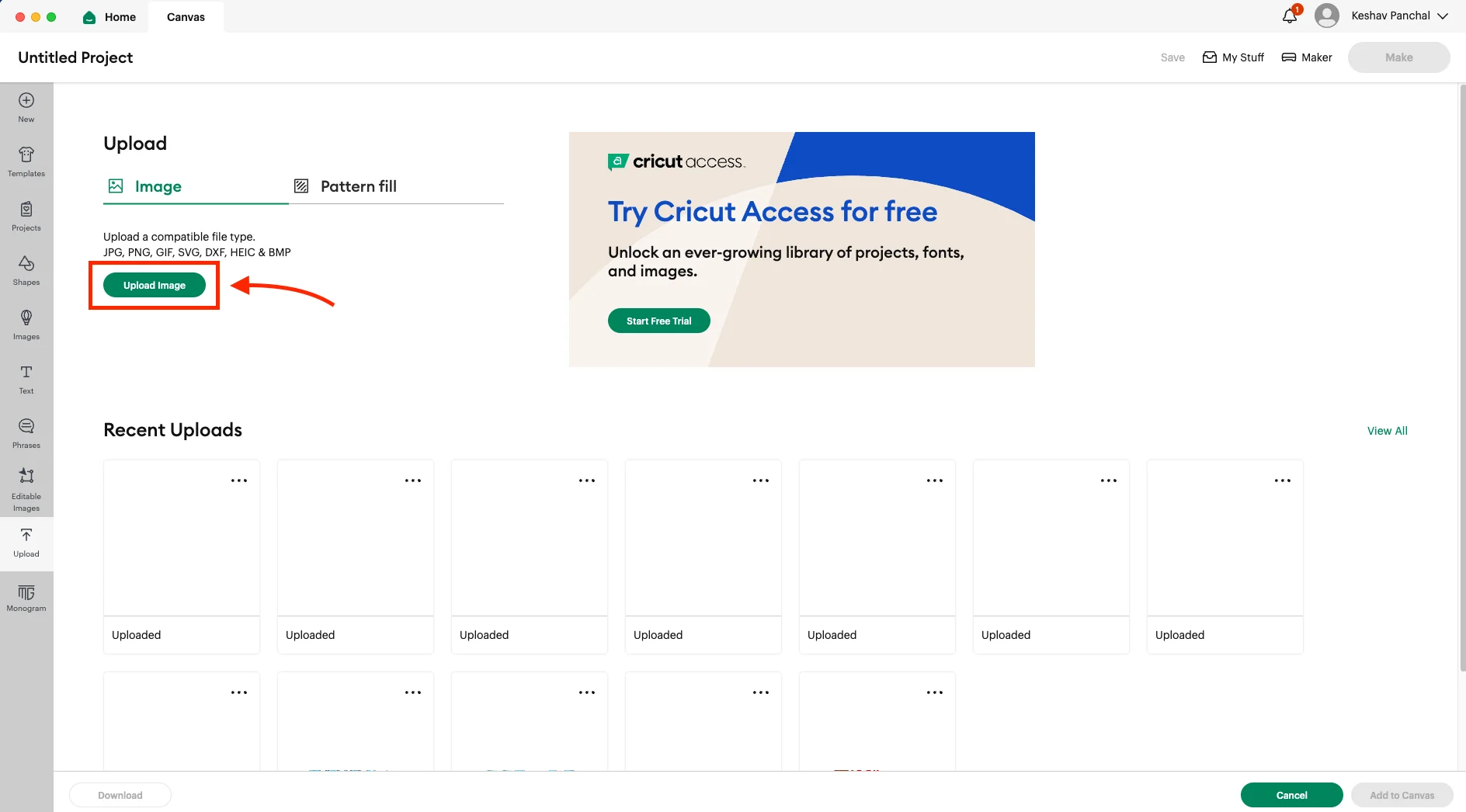
- Click “Upload Image”.
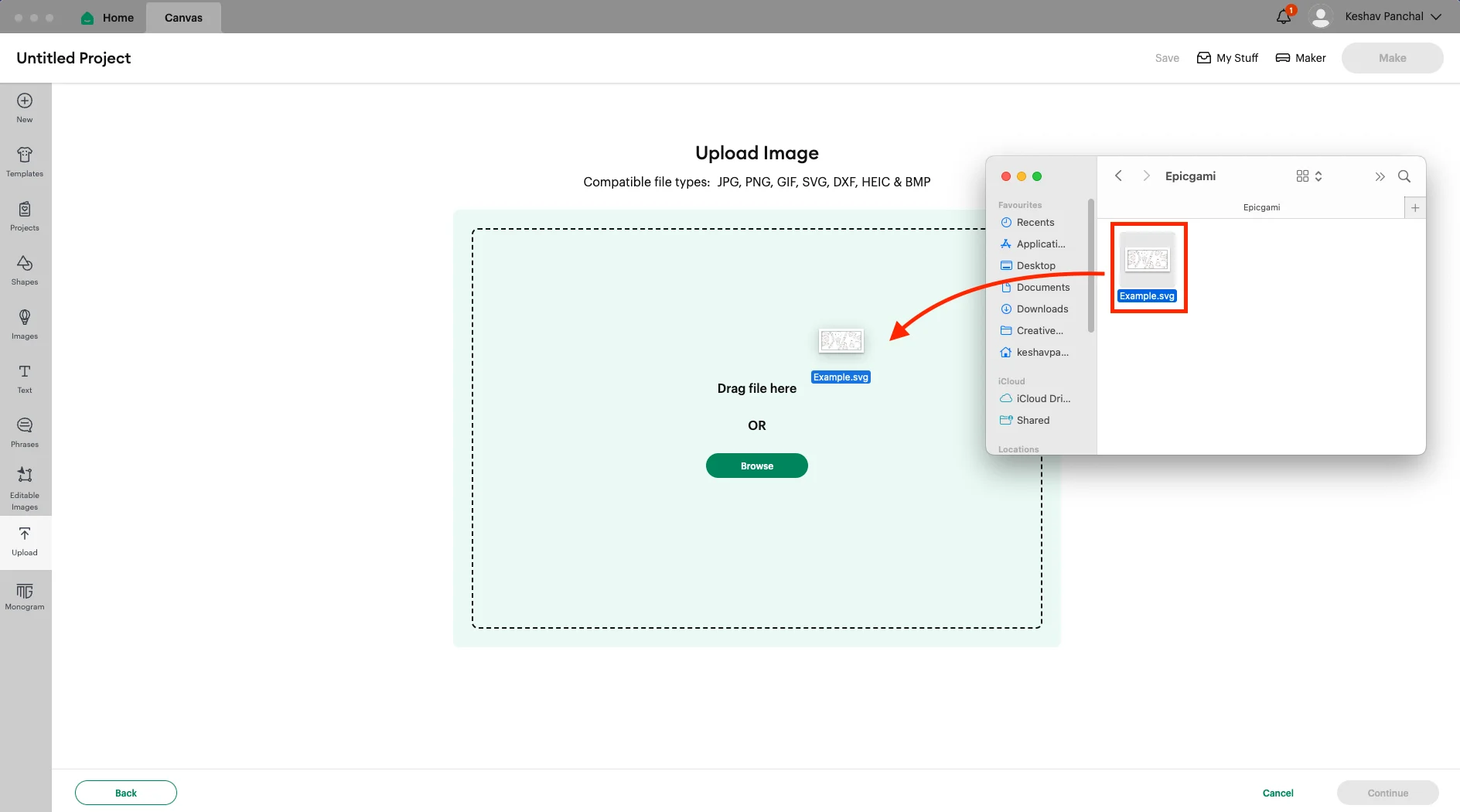
- Find the SVG file on your device, or drag and drop it into the upload area.
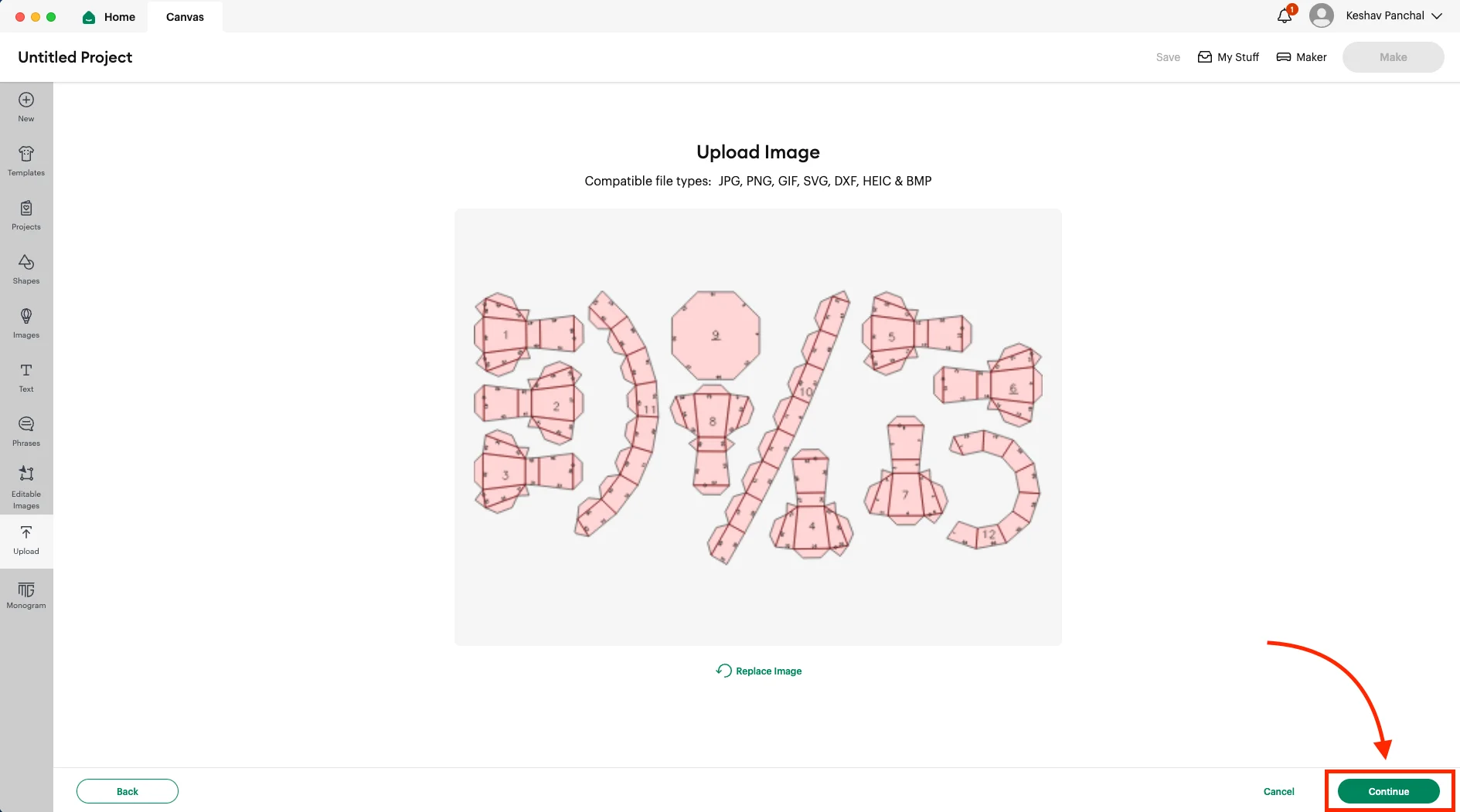
- Click “Continue”.
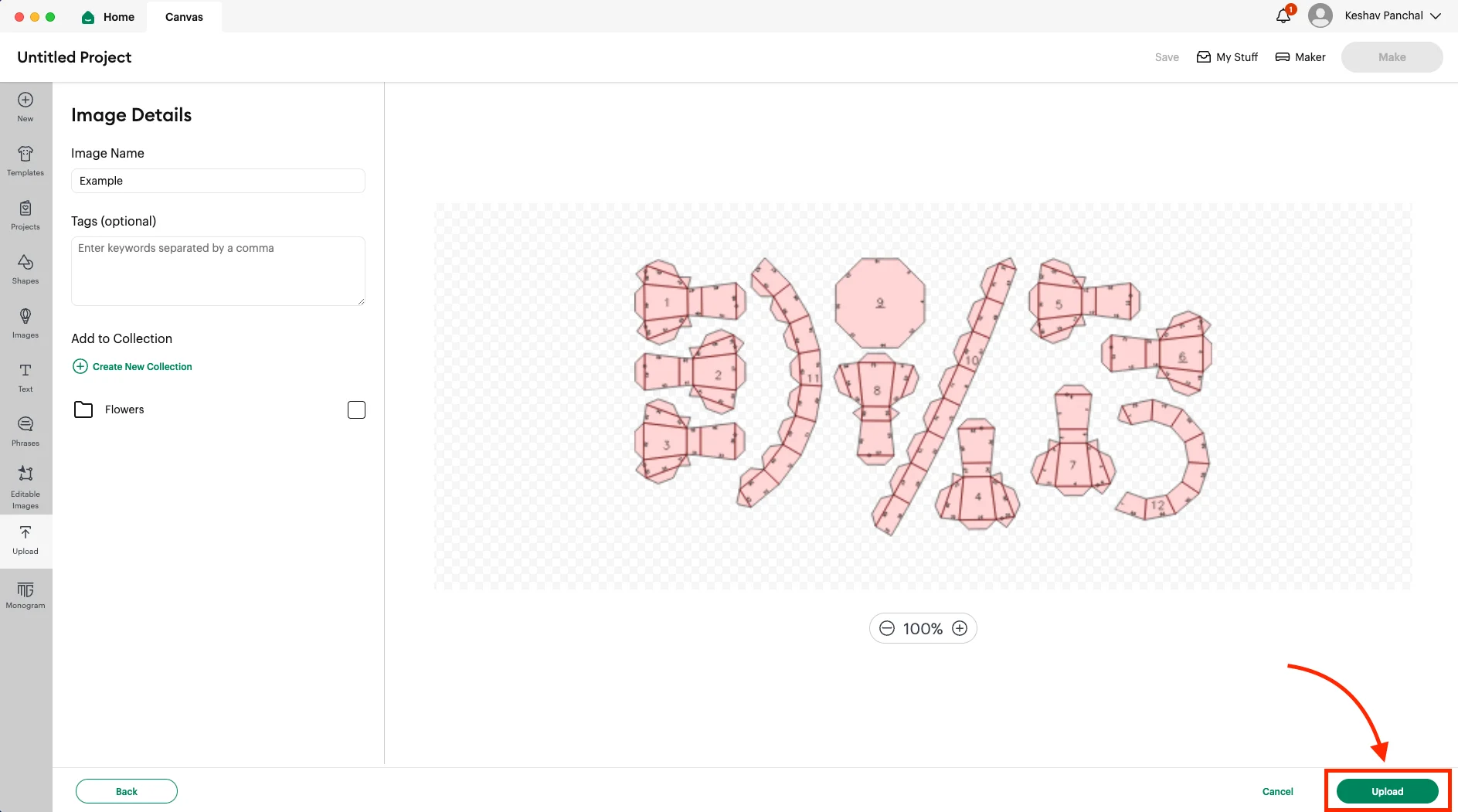
- Then click “Upload” again to add it to your project.
Step 3: Prepare the SVG file
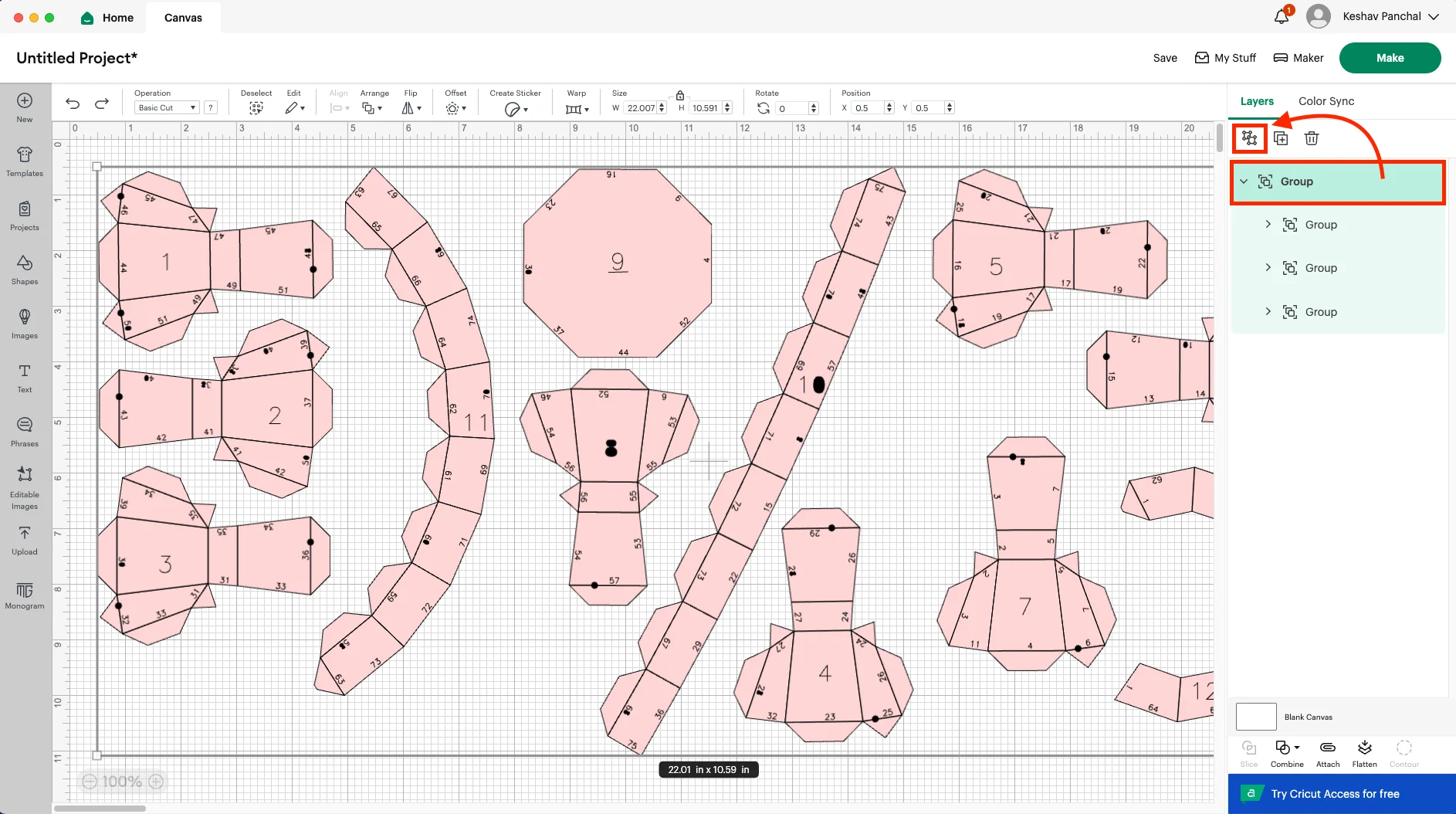
- Click on the SVG you uploaded to add it to your canvas.
- Select the outermost group of the SVG.
- If the outermost group contains multiple sub-groups, click the “Ungroup” button. Otherwise, skip this step.
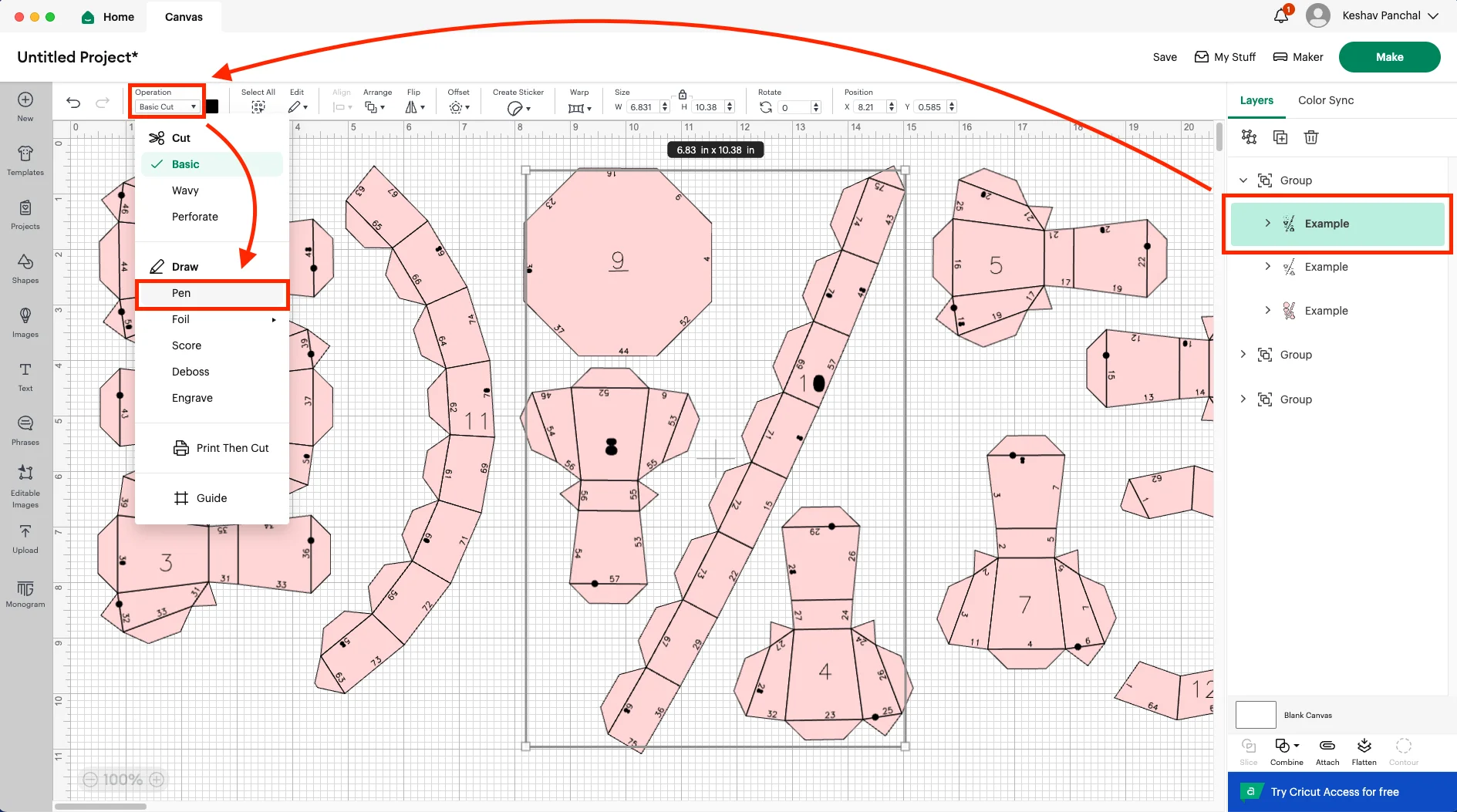
- Open the first group and select the first layer.
- Change the Operation to “Pen” if it’s something to draw (like numbers or lines). You can use the hide/unhide eye icon to check.
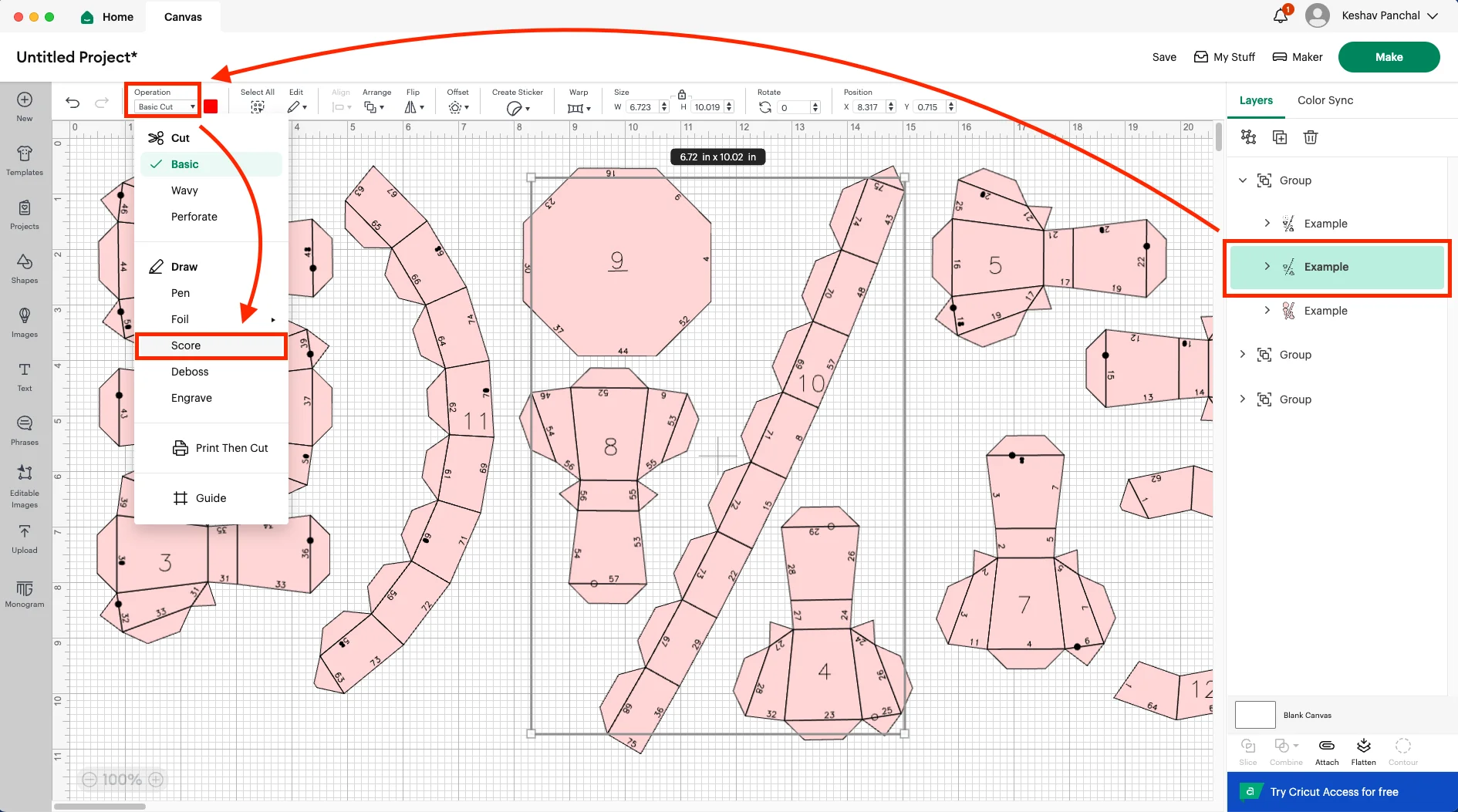
- Select the second layer. If it has score lines, change the Operation to “Score”. You can also verify this by looking for the “red color box” next to the operation selector.
- The last layer should already be set to “Cut”, so there is no need to change it.
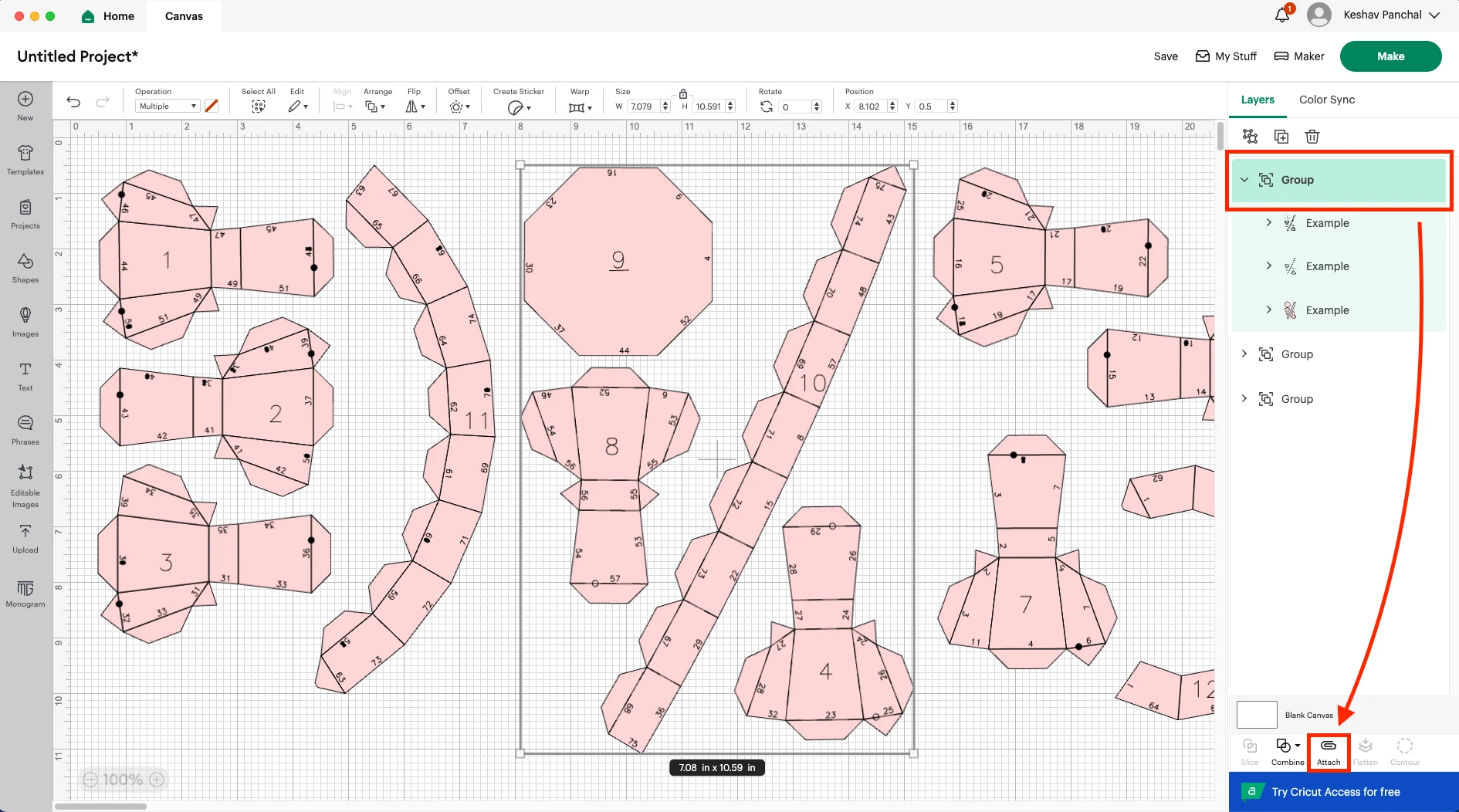
- Now, select the whole group and click “Attach”. This keeps everything in the right place while cutting.
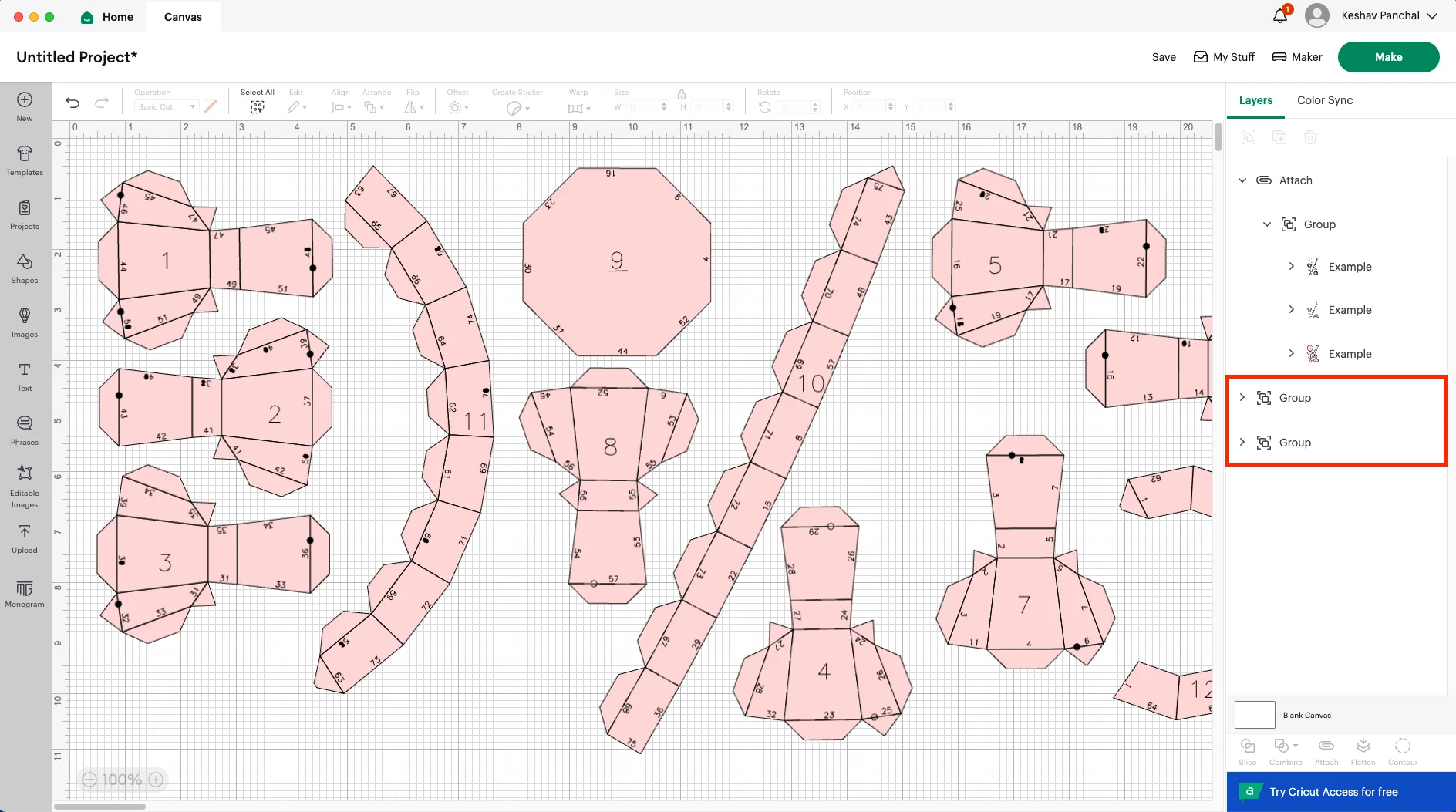
- Repeat this for other groups in your SVG if there are any.
Step 4: Make it!
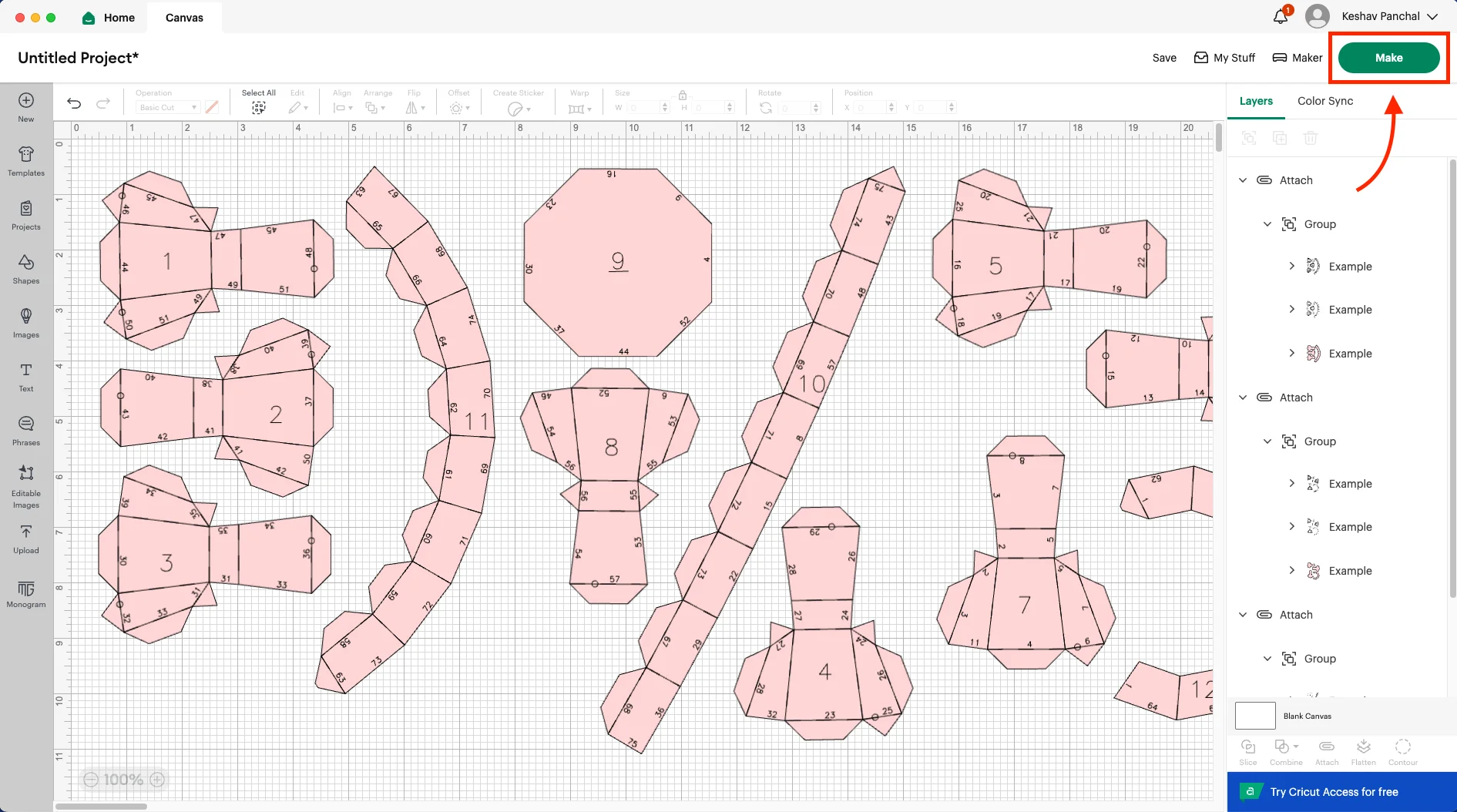
- When everything is ready, click the green “Make It” button at the top right.
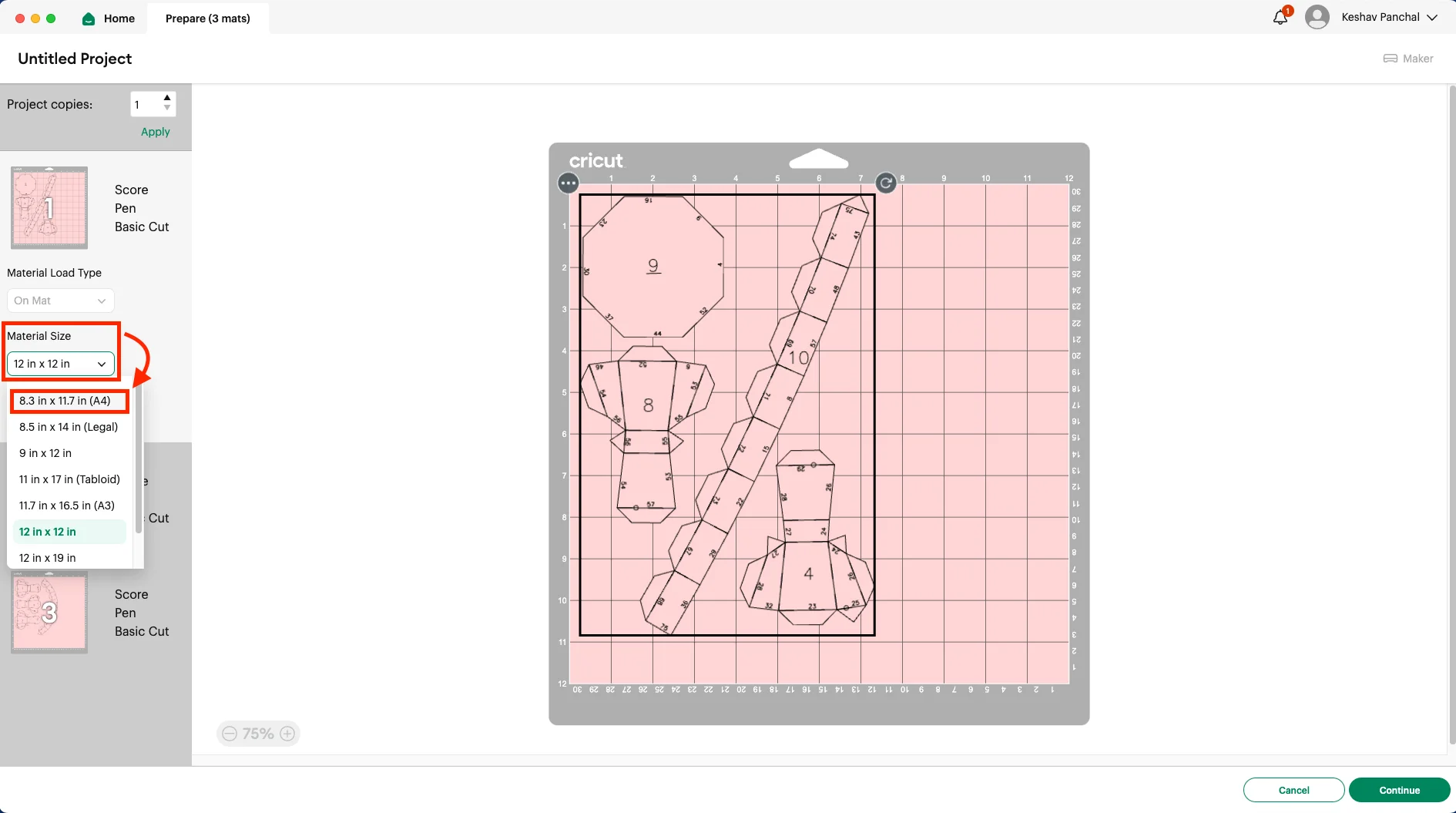
- On the Prepare Mat screen, choose your paper size (like A4).
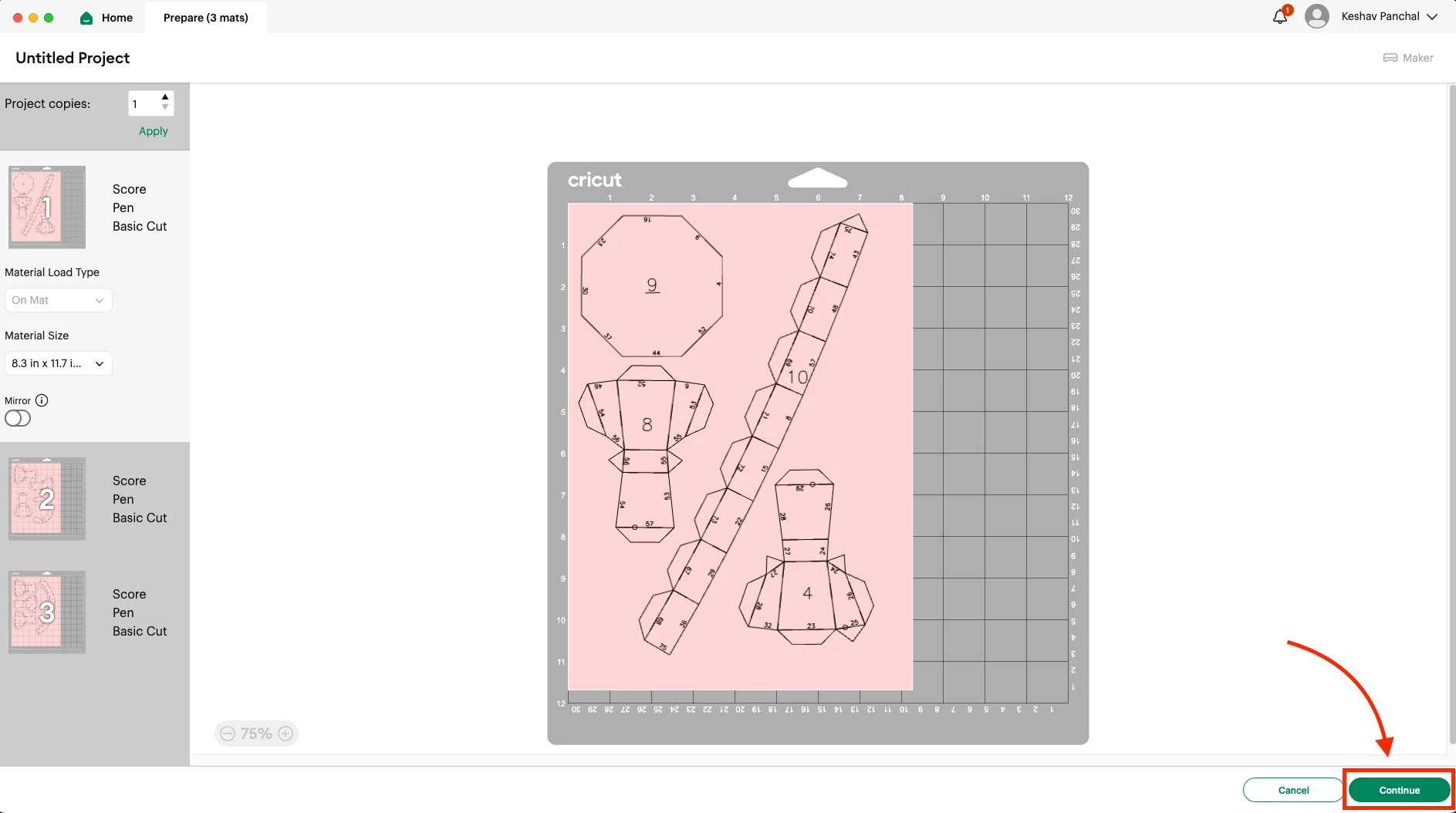
- Click “Continue”.
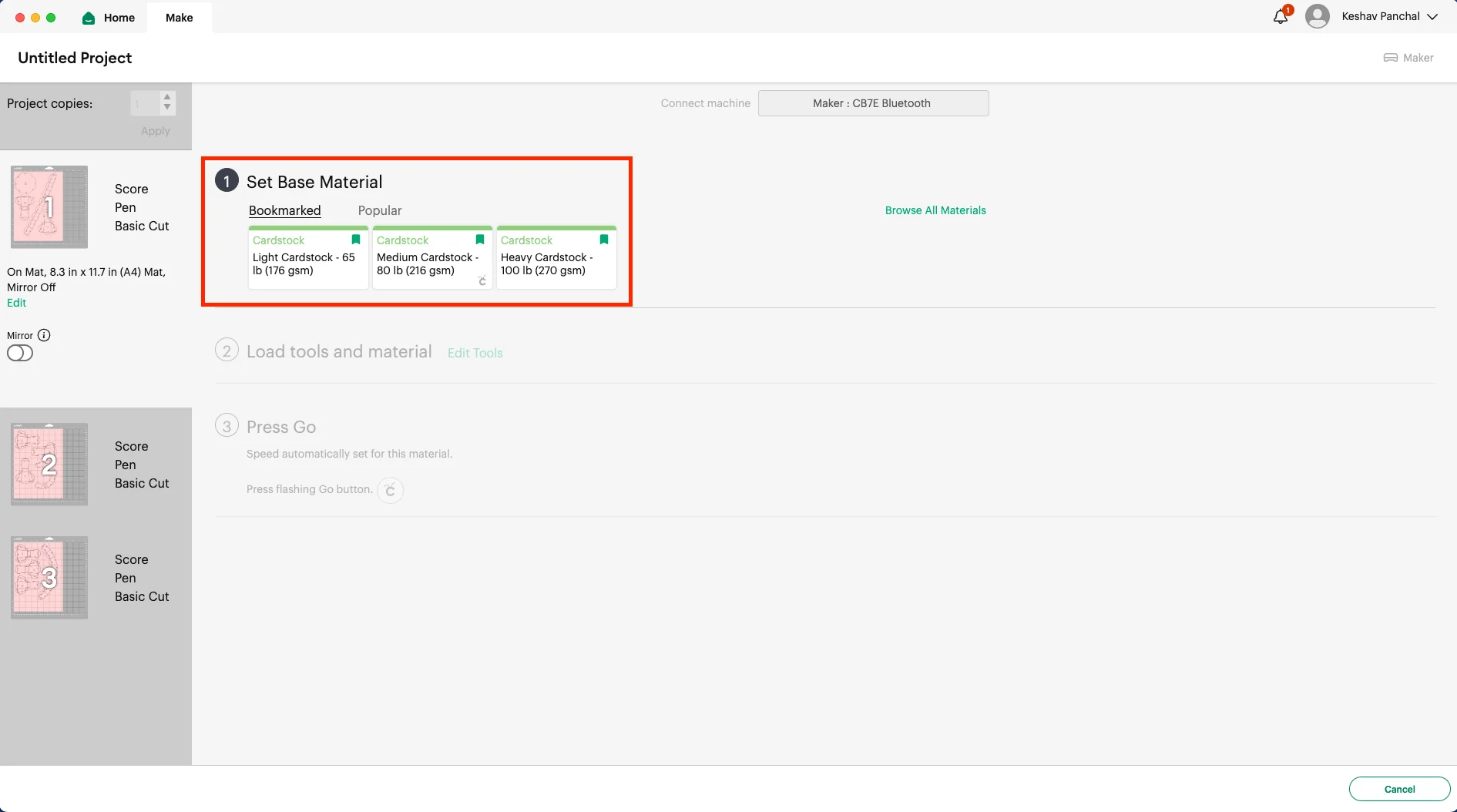
- Choose your material setting: “Medium Cardstock” or “Heavy Cardstock”.
- Load your mat and let your Cricut do the magic!
Pro tip: If your blade is a bit old, set the pressure to “More” for a cleaner cut.
That’s it! Now you know how to cut MakeItPaper SVGs with Cricut Design Space. Have fun crafting!